 to run the code and the output will look like this:
The goal of this activity is to demonstrate all the different ways that the random function can be used in JavaScript. This is important because we want to be able to study board games and dice throws and coin flips, etc. Understanding all the different ways to use the random function is key to figuring out how to write a code to model any particular game that includes some element of randomness.
In JavaScript there are some functions that are very straightforward. A square root function is a pretty good example:
$ \sqrt{x} \rightarrow $ sqrt(x)
So if you want to calculate $\sqrt{25}$ you just put sqrt(25) into your code and it will give you the answer 5.0. Likewise if you want to calculate $\sqrt{2}$ you can put sqrt(2) into the code and it will give you the answer 1.41421356. In both the computer science and math communities we say that the function sqrt has one "argument" and we have passed a single number as the argument to the function.
The thing (for example numbers) that you give to a function
to compute is called the argument of the function
The random function in JavaScript is more complex than this. You can give it one argument, like random(5), or no arguments, like random() or two arguments or a series of numbers or text, etc. We will learn about all the different possibilities in this activity.
With the square root function there is a great deal of similarity between what the sqrt function does in a code and what in a math class the $\sqrt{ \, \, \, }$ symbol means. But because there are so many different ways to use a random function in code, the connection to pure math ideas is a bit more abstract, but that's ok. It is still a ridiculously helpful thing to be able to use in a code.
A computer function that can take more than one set of arguments is referred to as an "overloaded" function.
So, for example, the exponential function can only take one argument so it is NOT an overloaded function whereas the random function in JavaScript IS an example of an overloaded function. Another example of an overloaded function is fill. For example, you could use fill(170) will provide a gray color or anything between pure black and pure white by choosing a number between 0 and 255. But you can also use fill with three arguments to provide an rgb color. For example, fill(255,0,0) will produce a red color.
Click here to open up the code
In the top left corner, press to run the code and the output will look like this:
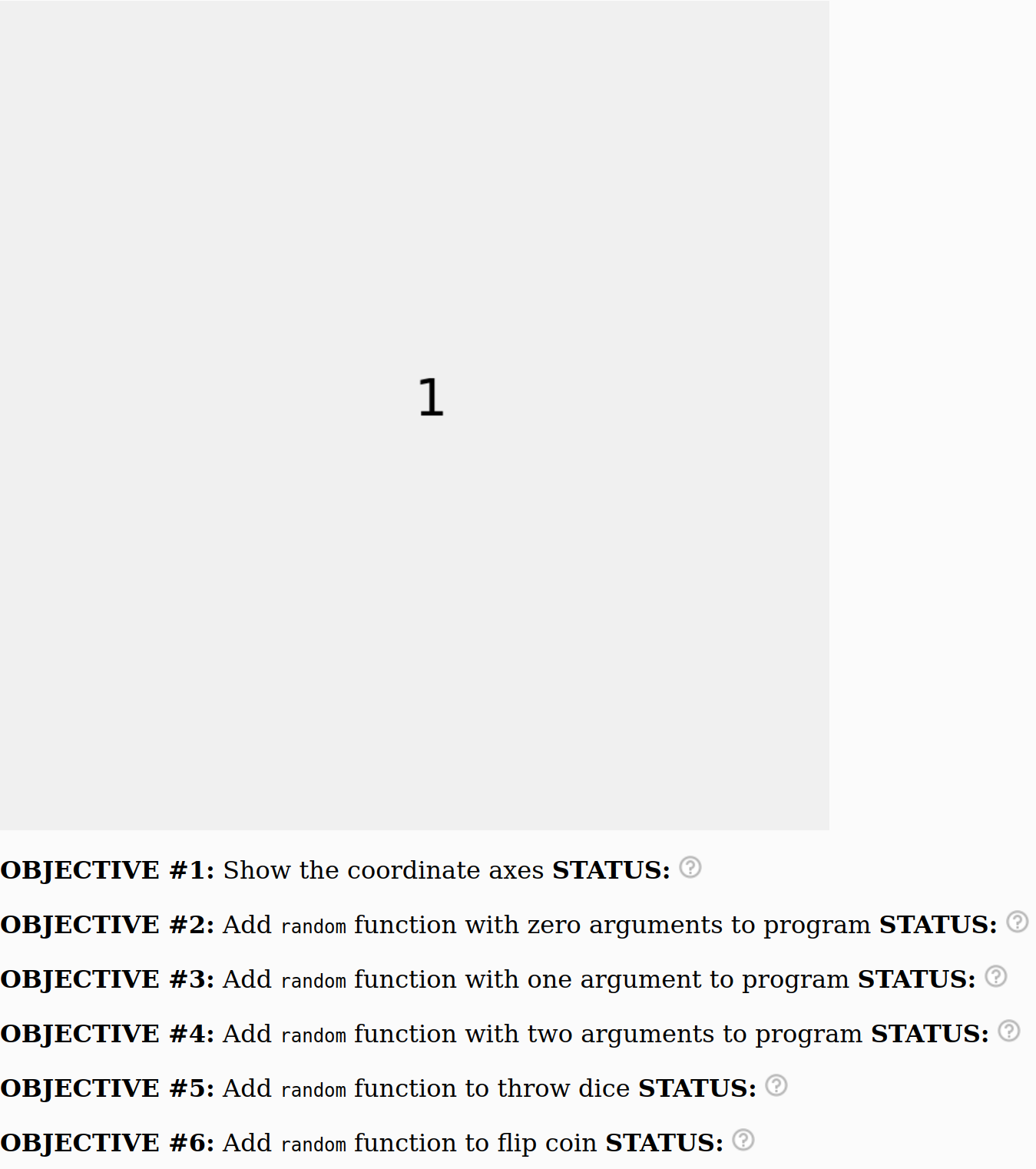
To save your work you need to create an account by clicking Sign Up in the top right corner of the screen. If you have already created an account, click "Log In" and put in your login information
A non-profit arts group called The Processing Foundation runs this site. They are nice people and they will not send you a bunch of emails for registering.
Before moving on, in the top left click click File --> Duplicate so that the code you are working with is on your account!
If the program can detect that something is wrong with your code it will show a red  next to that objective.
If the program can detect that you have completed the objective it will show a green check mark  next to that objective.
But the program is not very smart and if it can't tell whether you have completed the objective it will indicate a question mark like this  next to that objective.
By the end of this activity your goal is to have green check marks next to all the objectives like this:
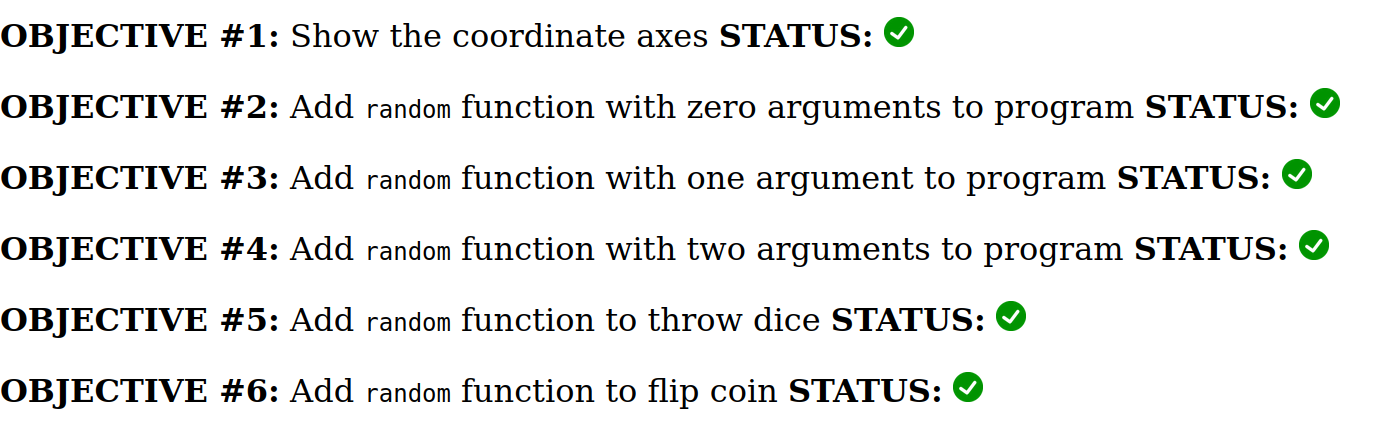
The directions below will help you meet all these goals.
showaxes = false;

function draw() {
  clearscreen(240,240,240);

  fill(0);
  textSize(25);
  text(1,200,200);

  display();

}
Which part of this code is drawing the number 1 on the screen?
Which part of this code places the number 1 in the center of the screen?
Are we using fill to make the color grayscale or rgb?
You can display the coordinate axes on screen by changing this:
showaxes = false;
to this:
showaxes = true;
If you make this change your program should behave like this
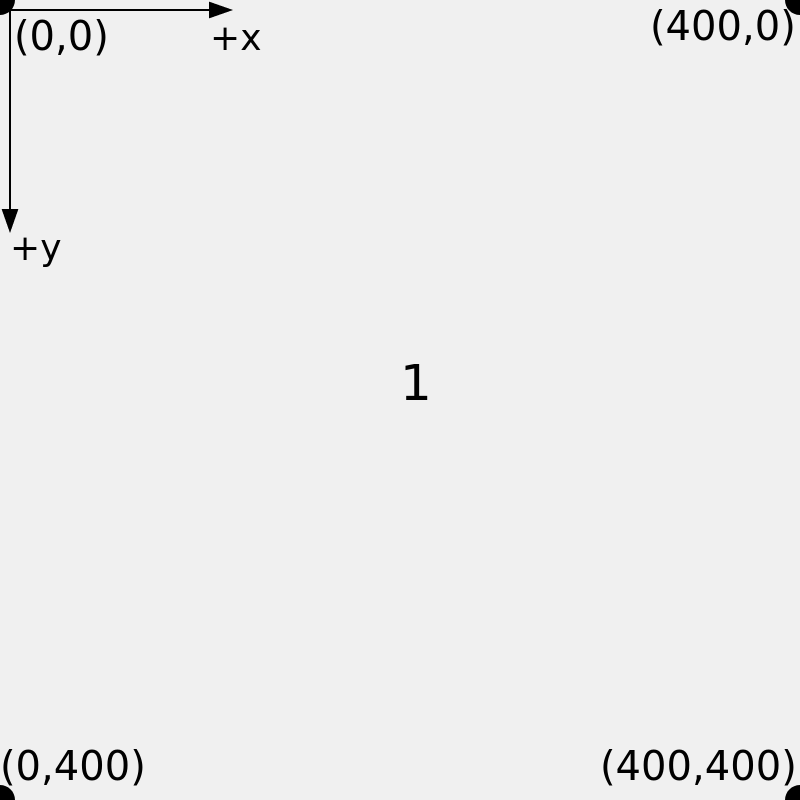
As you can see the coordinate axes goes from 0 to 400 in x and y and with the origin in the top left.
Compare this coordinate system with the coordinate system used in a typical math class
One of the ways to use the random function is with no arguments. It turns out if you use random() it will produce a random decimal between 0 and 1. We can use this to get the number 1 to show up at different locations on the screen.
Change this:
text(1,200,200);
to this:
text(1,400*random(),200);
After you modify the code your program should behave like this
What does this do to the position of the text? Does it change the x position or the y position?
What does 400*random() do? What range of numbers does this produce?
Advice: You can use this code to see example values from 400*random() written below the screen
createP(400*random());
or you can replace the "1" in the text command with 400*random() and see the values written on screen. It is up to you!
Another way to use the random function is with one argument. For example random(400).
Change this:
text(1,400*random(),200);
to this:
text(1,400*random(),random(400));
After you modify your code your program should behave like this
Explain in your own words what this change does to the position of the text and why
What does random(400) do? What range of numbers does this produce? Is there any meaningful difference between 400*random() and random(400)?
Advice: You can use createP(random(400)) in the code to show the values of random(400) below the screen or replace "1" with random(400) to see the values written to the screen.
Yet another way of using the random function is with two arguments.
Change this:
textSize(25);
to this:
textSize(random(15,30));
After you make this change your code should behave like this
What does random(15,30) do? What range of values does this produce?
Why would using random(30) instead of random(15,30) be unwise for the purpose of changing the text size?
You have to agree that it's pretty boring to just show the number "1" on the screen over and over again. Let's make it interesting by using a random function to simulate a dice roll!
Here is yet another way to use the random function:
random([0,1,2])
The code above will randomly select from the integers 0, 1 and 2 and return one of those values.
In the code above [0,1,2] is an example of an "array"
Modify this code to simulate a six-sided dice roll and replace the "1" in the drawText function mentioned in Step 6 with your solution
After you make this change your program should behave like this
Another way to use the random function is by giving it words. Here is an example:
random(['burrito','nacho','taco','burger'])
Here is some code below that you can modify to randomly write 'heads' or 'tails' to the screen
text(random(????),random(400),random(400));
If you make these changes to your code your program should behave like this
At this point you should have all green check marks! Yay!
There is already some code in the program that specifies that the color of the text should be black. It's this line:
fill(0);
As mentioned earlier, the fill function can take one argument from 0 to 255 to specify whether the color is black (0) or white (255) or some shade of gray inbetween.
You can also give the fill function three arguments like this:
fill(255,0,0);
The above code should make the text red because when the fill function is given three arguments the first is red, second is green and third is blue.
Another option is to use the fill function like this:
fill(color('blue'));
Now the text should show up blue.
Use what you have learned so far to randomly specify the color of the text. You can also randomly select the background color by changing clearscreen(240,240,240);
Here is a fun example of what you can do